Exercise 4 - Version control with Git
Git is a version control system originally introduced to support the development of the Linux operating system. Originally released in 2005 git is now used in countless projects to facilitate version control and collaboration. Git can be used in many different scenarios and it is also a handy tool to keep track of changes in research projects. With git it is straightforward to monitor changes in files and thus ensure reproducibility of bioinformatic experiments. In this exercise we will introduce git and show how a basic git workflow looks like.
Objectives
Create our first git repository
Learn how to keep track of file changes
Learn what branches are and how they work
Interact with online repositories
Keeping track of your project using git
Important terms:
- repository
Your directory that you would like to track with git. Also often called repo.
- commit
A snapshot of your repository with all the changes since your last commit. They are essential to your repository to keep track of all changes. You can also jump between commits to recover different versions of file.
- staging area
The place where you collect changes before you create a commit. This allows you to decide exactly what should be part of the next snapshot.
- remote
A copy of your repository on another computer or online platform such as GitHub or GitLab.
Initialize a new repository
With git you can easily track your work and see how it evolves into a large research project. A nice thing about git is that it uses very little memory and you almost don’t ‘see’ it during your workflow. Git stays out of your way when you work on your project, but it is there when you need it. The first step when you start working with git is to create a repository or repo. On your machine a repo is just a folder that git is monitoring. It is straightforward to set up from within you projects directory using git init.
$ cd my_project
$ git init
Initialized empty Git repository ...
Depending on your git version and configuration, the default branch may be called master or main. In this exercise many examples use master, but the same ideas apply if your branch is called main.
It is generally also a good idea to set up git with your name and email address so that contributions to a repository can be attributed transparently. This can be done with the following commands which will set the global settings of git. It is only necessary to do this once regardless of how many repositories you initialize.
More information here.
$ git config --global user.name "FIRST_NAME LAST_NAME"
$ git config --global user.email "MY_NAME@example.com"
Hint
If you would like to perform this action only for your current repository, you just have to leave out the --global flag.
Check the status of your repository
You should see a message that git init successfully created a git repository. Congratulations, now your project is monitored by git. One of the things you will be doing regularly is to check the status of your repository with git status. This command is very handy and it allows you to see what git sees. Let’s try it out:
$ git status
On branch master

No commits yet

nothing to commit (create/copy files and use "git add" to track)
Remember this command. It is key to understand what git keeps track of and what not. From the output you can see that currently the repository is empty, and also that there are no tracked files. Let us change that and create a new file. After this we run git status again.
More information here.
$ touch protocol.md
$ git status
On branch master

No commits yet

Untracked files:
(use "git add <file>..." to include in what will be committed)

   protocol.md

nothing added to commit but untracked files present (use "git add" to track)
You can see from the output of git status that git now has become aware of the protocol.md file. However git does not keep track of changes in the file yet, it is listed under “Untracked files”.
Staging files
Now that git “sees” the file, we need to let it know that we would like to also track it. In git this is called staging. The git command for that is called git add. See how it works:
$ git add protocol.md
$ git status
On branch master

No commits yet

Changes to be committed:
  (use "git rm --cached <file>..." to unstage)

    new file:   protocol.md
git add will add the file to the staging environment. We are now ready to make a snapshot of the repository by making our first commit.
More information here.
Before committing changes it is often useful to inspect what exactly has changed. This can be done with git diff. Without additional arguments, git diff shows changes in files which have not yet been staged. If you would like to see the changes which are already staged for the next commit, you can use git diff --staged.
$ git diff
$ git diff --staged
Exercise
Make a small change to your protocol.md file and use git diff to inspect the change before you commit it.
Commit changes
Committing changes (remember that all changes to be committed first need to be staged), is what makes git remember. A commit is a snapshot of the complete repository at a given time. Creating a commit requires the git commit command. See below:
$ git commit -m "Adding the protocol.md file to the repository"
[master (root-commit) 50d2cf8] First commit
 1 file changed, 1 insertion(+)
 create mode 100644 protocol.md
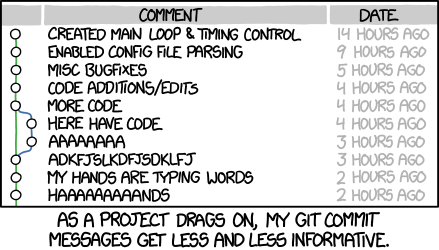
As you can see we are using the flag -m, which is short for message. This flag takes a string as argument which will become the commit message. The commit message describes what is contained in the commit. Make sure this is an informative message, because it will stay in your git log. Meaningful commit messages enable you to quickly identify what you did without having to look at the actual files. A good commit usually contains one logical change and has a short message that explains what changed, for example Add sample metadata or Document quality filtering command. Look at the xkcd comic below. It describes what can happen easily with projects in git.
More information here.
Exercise
Create a short protocol in Mardown format of what we did so far to your protocol.md file and commit the changes to your repository.
Stage and commit. Why two steps?
Let us quickly recapitulate what we have learned so far about working with git. We have seen how a typical git workflow would look like:
Make changes to your file.
Add the file to your staging area with
git add.Commit your staged file using
git commitand use an informative commit message.
It is sometimes considered confusing that git uses this two-part workflow with staging and committing. Why is it necessary to stage files first and how does git know that a file should be part of a commit? The answer to this question is that you can also combine changes of multiple files into a single commit. This makes sense, since you may be working on different things simultaneously or changes for one aspect of your project requires modifying multiple files. In this case you would probably want to group all changes together and only create a single commit.
Keeping track of your commits
Git offers several commands which let you quickly check the history of your repository. Let us look at our repository now:
$ git log --oneline
13202ab (HEAD -> master) Add protocol document
50d2cf8 First commit

$ git log
commit 13202abad4911ba1158161b0ab8120a3be2e1387 (HEAD -> master)
Author: Philipp Resl <xxx@yyy.com>
Date:   Thu Jun 9 13:39:43 2022 +0200

     Add protocol document

commit 50d2cf80c9461eef8f67c9273eec8fd3e687162b
Author: Philipp Resl <xxx@yyy.com>
Date:   Tue Jun 7 13:23:04 2022 +0200

     First commit
The difference between the two commands presented above is simply the amount of information you get controlled by the --oneline flag. The standard git log command show additional information such as who contributed to the repository and the exact date and time of the commits. The last commit is always on top of the list. It is also called HEAD. This is also indicated by (HEAD -> master) which also tells you the branch you are on. In this case: master. We did not talk about branches yet. This will come a little bit later.
To make them identifiable, commits get unique IDs that consist of combinations of numbers and letters. These are also called hashes. We can use commit hashes to switch between different versions of the repository. For example let us try to switch back to the First commit with the hash 50d2cf8 (long version: 50d2cf80c9461eef8f67c9273eec8fd3e687162b). Keep in mind that your hashes will be different. You need to use the ones from your git log output.
More information here.
Hint
Hashing by itself is very powerful. It is used in many different fields of computer science. Calculating hashes can already help to increase reproducibility because hashes (of files) can be used to check if files are identical.
Reverting to an older version of your repository
Since git keeps track of all your committed changes by using unique hashes, it is also possible to revert the repository to a specific commit. This is done with git checkout.
$ git checkout 50d2cf8
You are in 'detached HEAD' state. You can look around, make experimental
changes and commit them, and you can discard any commits you make in this
state without impacting any branches by performing another checkout.

If you want to create a new branch to retain commits you create, you may
do so (now or later) by using -b with the checkout command again. Example:

   git checkout -b <new-branch-name>

HEAD is now at 50d2cf8 First commit
This will revert (checkout) your repository to how it was when you made your first commit.
Exercise
Revert your repository to the second commit we made earlier. Hint: you may use git reflog to get the hash.
Hint
Using git checkout is crucial if you would like to use the exact same version of a repository which is hosted on some online platform such as GitHub or Gitlab.
More information here.
Back to the HEAD commit
After this exercise we should still be at the second commit we made earlier. How do we get back to the latest commit? Let us see how it works:
$ git checkout master
Previous HEAD position was da60069 Added info
Switched to branch 'master'
Your repository should now be back at the original (latest) commit we made.
Hint
You can also use git checkout - which will go back to the last commit you where at. Similar to cd -.
Ignoring files
In general git is aware of all files in your repository. However, it is common that there are files which you do not want to be tracked. For example this includes large input files or software executables which you are not allowed to distribute.
You can tell git to ignore files by using what is called a .gitignore file. In this file you can add all folders and files which git should ignore, each entry on its own line. You can also use regular expressions to specify multiple files. Here are some examples from a .gitignore file:
$ cat .gitignore
data/raw/
data/raw_reads.fq.gz
data/*.fq
data/*.fastq.gz
*.bam
tmp/
software/
log/
!log/.gitkeep
The above .gitignore file covers several practical examples of how you can exclude (and keep) files in excluded directories. It should be pretty self explanatory what they do. Lines starting with ! have a special meaning though. It means that this file will not be excluded. Remember earlier when we said that it is not possible to commit empty directories to a git repository? This is a way around this problem.
Especially in bioinformatics you should think carefully about which files belong into a git repository. Scripts, small metadata tables, configuration files and documentation are usually good candidates. Large raw sequencing files, BAM files or large temporary results should usually not be committed to a normal git repository. They are better stored in archives, public databases or data repositories and then referenced from your documentation.
Hint
Git treats your .gitignore file as a regular file, so make sure to also commit the changes to it.
Exercise
Create two files in your repository and add one of these files to your .gitignore file. Hint: You can use git status to keep track of the files and find out what git “sees”. Also add one pattern that would ignore a common large bioinformatics file type, for example *.fastq.gz or *.bam.
Branches
Sometimes you may want to make larger changes to your repository with the risk that they are incompatible with your main workflow. Of course you don’t want to overwrite anything that already works. It may also be that you collaborate with somebody on a project and you don’t want to mess up their work in the shared repository. In such cases git offers a concept called branches. A branch is exactly what the name implies. It creates a named branch of your repository starting from a specific commit (usualy HEAD). A branch may contain many commits and you may have many branches. At a later stage, branches can also be merged to combine all commits. The standard branch is called master or main. git status will show you the current branch you are in. These examples should make it more clear:
$ git branch testbranch
$ git checkout testbranch
Switched to branch 'testbranch'
$ git status
  On branch testbranch
  nothing to commit, working tree clean
First we have to create a branch and give it a name: git branch testbranch. Next we need to switch to that branch: git checkout testbranch. With git status we can now see that we are working in this new branch. Everything we commit will be committed to this new branch.
More information here.
Merging branches
At some point you may want to combine work made in different branches. This is possible with git merge. Typically you will want to merge your new branch with the main (or master) branch. Git will identify the last commit the two branches have in common and it will create a new merge commit. Before merging you need to make sure that the current HEAD is in the branch that should be the merge target. This means you will need to check out the branch you want to merge with first. This is typically the main (or master) branch. Given we are already in the main branch we can merge a branch with master like this:
$ git checkout master # first we need to move back to the branch we want to merge testbranch with.
$ git merge testbranch
  Merge made by the 'recursive' strategy.
   bla | 1 +
   1 file changed, 1 insertion(+)
More information here.
Warning
Merging can be tricky and cause conflicts if commits made in different branches change the same file. In such a case you need to manually inspect the conflicting files to resolve the problem.
Exercise
Create a new branch, and make two commits to this branch and merge it with the master branch.
Tagging
It can happen that you will want to highlight important points in the history of your project. This is called tagging and it can be done with the git tag command. For example a good point to tag would be the version of the repository during at point of submission, revision or publication of a manuscript, to make all changes that happen during the review process are transparent to you and reviewers.
Here are a few examples of how tagging is used in git:
$ git tag
v0.1
v0.4
v1.2
$ git tag -a v1.5 -m "New version 1.5"
$ git show v1.5
tag v1.5
Tagger: Philipp Resl <xxx@yyy.coom>
Date:   Sat May 21 19:19:14 2022 -0700

New version 1.5
The first command lists all tags. The second command creates a new tag called v1.5. It also uses a tagging message -m, to describe what the tag refers to. With git show you can get additional information on a tag.
Working with online Git repositories
There are several services that provide online hosting of git repositories. The three largest services are Github, Gitlab and BitBucket. Many different bioinformatic software packages are hosted and developed using one of these platforms. It is one of the great strengths of git to be able to access repositories that are located on different computers. It greatly facilitates collaborative work, transparency and reproducibility.
Each of the three platforms have their own special features complementing the core functionality of git. There is a lot you can do on these platforms going far beyond what we can show here. We will therefore only provide a very general introduction to how to interact with online repositories. Here is a simple example:
$ cd # move back to your home directory before this
$ git clone https://github.com/reslp/reproducibility-workshop.git
  Cloning into 'reproducibility-workshop'...
  remote: Enumerating objects: 54, done.
  remote: Counting objects: 100% (54/54), done.
  remote: Compressing objects: 100% (32/32), done.
  remote: Total 54 (delta 25), reused 45 (delta 19), pack-reused 0
  Unpacking objects: 100% (54/54), done.
git clone is the command to create a local copy of the repository of this course hosted on Github. It will download the complete repository, together with a complete history of all commits on all branches.
More information here.
It is even possible to host a git repository on your own server.
Exercise
Find the secret message hidden in the repository. You can use what you have learned so far to discover it. Additionally, the command git branch -a or git branch -r could help. In cloned repositories, branches are often listed as origin/<branchname>. Depending on how you have already interacted with your local copy of your repository you need to use the full branchname origin/<branchname> or you just need the name after the forward slash / character.
Transferring local changes to an online repository
If you have made local changes to a repository, at some point you will want to include these changes in the online version of it. This is called pushing and the corresponding command is git push.
$ git push origin main
This command will push all committed changes made in the main branch to the online repository (which is called origin).
More information here.
Getting changes from an online repository
It can happen that changes have been pushed to an online repository, but your local copy is older and you do not have the latest changes. In such a case you can download all changes from a remote repository directly into your local copy:
$ git pull
This command will compare the remote and local repositories and will download all changes from the remote version of the repository
More information here.
Exercise
Find a git repository on Github, maybe some software you have been using. Clone the code and investigate the repository using what you have learned in this exercise. When was the last commit? Do you find the commit messages helpful? How many tags to you find? Are there any branches?
Moving and removing files in a git repository
Sometimes you will want to relocate files inside your repository or stop tracking them with git. You should not use mv and rm in these situations. Git can get confused if you simply delete a file or put it into a different place. Instead what you should do is use git mv to move files to a different place and git rm to remove files. Be careful: by default git rm removes the file from git and also deletes it from your working directory. If you want to stop tracking a file but keep the local copy, use git rm --cached. This is useful when you accidentally added a file that should have been ignored, for example a large data file.
$ git mv old_name.txt new_name.txt
$ git rm --cached data/raw_reads.fq.gz
Use Digital Object Identifiers for your code and data
You probably already came across DOIs. These digital object identifiers are a great tool to increase reproducibility because they are snapshots of different data. Most researchers are familiar with them in the context of scientific publications. Most journals will assign DOIs to their published articles to provide a long-term reference to a specific work. However, DOIt can be used for many other things such as datasets, code etc. In fact, ideally each dataset behind a scientific publication should be available online and connected to a DOI so that other researchers can easily find and reuse them. Luckily there are several websites which make it easy to create DOIs for code and other data such as Zenodo or Figshare. We highly encourage you to use these in your next publication and we would be happy if you request that data is deposited in public databases connected with a DOI when you review other researchers work. As an example you can look at the GitHub page of this course, where each past iteration of this course has its own DOI number, which corresponds to the specific version of the course and how it was taught.
Common mistakes with Git
Git can be difficult and it is easy to make mistakes. You will surely come across the same problems several times and if you are like us you may be scratching your head trying to remember the git commands to solve the problem. Luckily you are not alone. Many people struggle with git and there are plenty of answers on StackOverflow and other websites for all kinds of problems associated with git. Here are two examples of common mistakes we have made many times with git and how to fix them. Hopefully these examples will also help you:
If you would like to change the commit message of the last committed commit you can use:
$ git commit --amend
If you have already pushed this commit you have to push the changes again with this slightly different push command:
$ git push --force-with-lease origin YOURBRANCH
Warning
Rewriting commits that were already pushed can confuse collaborators. Only do this if you know that nobody else is currently basing work on the commit you are changing.
If you accidentally committed changes to the wrong branch, this is how you can fix it and move the last commit to the correct branch:
$ git log # identify the hash of the last commit in main
$ git checkout correct-branch
$ git cherry-pick COMMIT_HASH
$ git checkout main # back to main branch
$ git reset --hard HEAD~1 #remove last commit in main
Warning
git reset --hard can discard local changes. Before using it, always check git status and make sure that you do not need the changes anymore.
There is a lot more…
This practical can only be considered a basic introduction to git. Git can do a lot more. The commands provided here will get you started and as you familiarize and apply them in your own projects you will quickly discover additional functionality. Here are additional resources that we found helpful when learning git.